Open it and read the day
The weekday and the date sit at the top. Below them: up to two events from the calendar, whatever is on the meal planner, and every open to-do in the house.
Today is the one screen for the whole day: what is planned, what is for dinner and which little jobs need doing, together, so nobody has to check three places before breakfast.
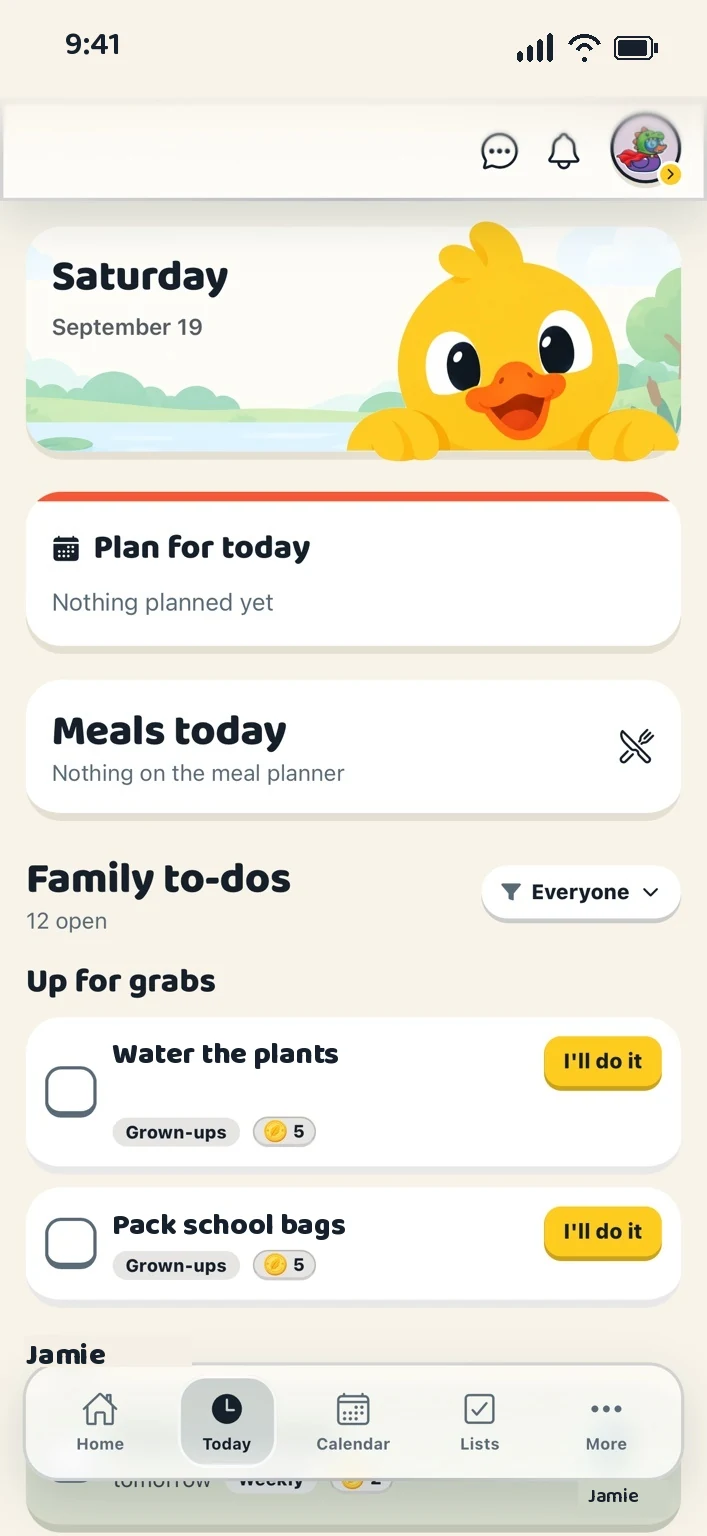
The weekday and the date sit at the top. Below them: up to two events from the calendar, whatever is on the meal planner, and every open to-do in the house.
To-dos are grouped by the person doing them, with the jobs nobody has claimed first. A filter shows everyone, only yours, or only what is up for grabs.
A tick moves a job to Completed today, with an undo beside it. Anyone can take an up-for-grabs job with “I’ll do it”, right from this screen.
The day’s events with their times. A camp that runs several days shows its real start on the first day and “All day” in between, never a midnight.
Breakfast, lunch, snack and dinner from the planner, with who each one is for. Tap a meal to open the recipe.
Every open job, not a shortened list. Undated jobs are the normal kind, and they are all here.
What got done, with a green tick and an undo arrow in case a tick was a slip.
The day and its times are the household’s, not the phone’s. A parent travelling does not move the family’s Thursday.
Home says “Morning” and your name. It never opens with how many things are left, because that is a telling-off in a friendly font.
The screen shows the day as it is and leaves the judging out.
A job without an owner is up for grabs, and anyone in the flock can choose “I’ll do it” to take it on. A grown-up can also put a job straight on someone’s list. The app never scolds: there is no “overdue” and no “you failed to”.
Choose “Start your flock” to open the app. Create an account, set up your household and start with one small thing: the calendar, a task or the shopping list. Home explains what each area is for, so nobody has to guess.
Create your household, add your people and choose your ducks. Everything for a fortnight, then one subscription covers your whole flock.